
How to Boost WiFi Signal at Home (2026)
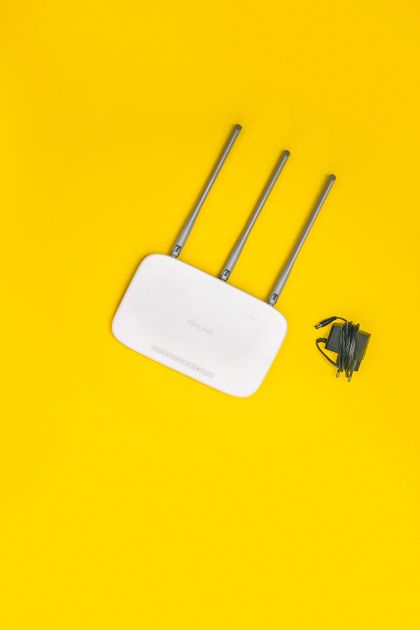
Photo via Pexels
Quick note: Supacells is an independent information site. We don’t sell networking equipment. This article is educational only.
Slow WiFi can usually be improved without buying anything new. Router placement, channel selection, and software settings make significant difference. When free fixes aren’t enough, hardware solutions range from $25 extenders to $1,500 mesh systems. This guide ranks fixes by cost and effectiveness.
Free Fixes (Try First)
| Fix | Time | Effectiveness |
|---|---|---|
| Move router to central location | 5 min | High |
| Elevate router | 5 min | Medium |
| Update router firmware | 10 min | Medium |
| Switch to 5GHz/6GHz band | 5 min | High |
| Change WiFi channel | 5 min | Medium |
| Reboot router | 2 min | Sometimes high |
| Remove interference sources | 10 min | Medium |
| Use WiFi name (SSID) per band | 10 min | Medium |
1. Optimal Router Placement
| Where | Effect |
|---|---|
| Center of home | Best |
| Elevated (table, shelf) | Better than floor |
| Open area | Better than closet |
| Away from corners | Better |
| Away from large appliances | Better |
| Away from baby monitors, microwaves | Better |
| Not behind TV or in entertainment center | Better |
Even a 5-foot move can dramatically change coverage.
2. Change WiFi Channel
WiFi 2.4GHz has only 3 non-overlapping channels (1, 6, 11). 5GHz has many. Neighbors using same channel reduce your speed.
To change:
- Log into router admin (typically 192.168.1.1 or 192.168.0.1)
- Find Wireless settings
- Change to less-congested channel
- Use WiFi analyzer apps (NetSpot, WiFi Analyzer) to find best
3. Use 5GHz / 6GHz When Possible
| Band | Speed | Range | Congestion |
|---|---|---|---|
| 2.4 GHz | Slower | Long | High (lots of devices) |
| 5 GHz | Fast | Medium | Lower |
| 6 GHz (WiFi 6E+) | Fastest | Shortest | Lowest |
Connect fast devices (laptops, gaming consoles) to 5GHz/6GHz. Use 2.4GHz for IoT and devices far from router.
4. Update Router Firmware
Manufacturers regularly release firmware updates that:
- Fix bugs
- Improve performance
- Patch security
- Add features
Most modern routers auto-update. Older may need manual update via admin interface.
5. Reboot Router Regularly
Every 1–2 months, unplug router for 30 seconds and plug back in. This:
- Clears cache
- Resolves connection issues
- Refreshes IP assignments
- Often fixes mysterious slowness
6. Eliminate Interference
| Source | Fix |
|---|---|
| Microwave (2.4GHz) | Distance from router |
| Baby monitor | Distance |
| Bluetooth devices | Distance |
| Other WiFi networks | Switch channels |
| Cordless phones | Distance |
| Aquarium with pump | Distance |
7. Limit Device Connections
Many older devices on 2.4GHz slow down whole network:
- Keep IoT (smart plugs, bulbs) on 2.4GHz only
- Move laptops, phones, gaming to 5GHz/6GHz
- Disconnect unused devices
- Consider guest network for visitors
8. Optimize Router Settings
| Setting | Recommended |
|---|---|
| WiFi mode | Mixed (allows all standards) or N/AC/AX only |
| Channel width (5GHz) | 80 MHz typical |
| Channel width (2.4GHz) | 20 MHz |
| Beamforming | On |
| QoS | Configure for important devices |
| Smart Connect / Band steering | On (auto-pick band) |
| Guest network | Separate |
Hardware Fixes ($25–$1,500)
When free fixes aren’t enough:
Cheap: WiFi Extender ($25–$80)
- Fixes single dead zone
- Halves speed typically
- Good for IoT in far rooms
Mid: Tri-band Extender ($80–$150)
- Less speed loss
- Good for active devices in dead zone
Better: Mesh System ($200–$700)
- Whole-home coverage
- Modern app management
- Seamless roaming
Best: Premium Mesh / Wired APs ($500–$1,500)
- Maximum performance
- Best for large/complex homes
- Wired backhaul if Ethernet available
See Best WiFi Routers of 2026.
When to Buy New Router
Replace router if:
- Older than 5 years
- Doesn’t support WiFi 5 or higher
- Frequent disconnections
- Doesn’t auto-update firmware
- Doesn’t support modern security (WPA3)
- ISP-rented (you’ll pay back fast by buying)
When the Issue Isn’t WiFi
Sometimes “slow WiFi” isn’t WiFi:
- Slow internet plan
- ISP throttling
- Specific website / app slow
- Single device problem (not WiFi)
- VPN slowing things down
- Browser extensions consuming bandwidth
Test wired Ethernet to compare. If wired is fine but WiFi slow, it’s WiFi. If both slow, it’s internet.
Helpful Resources
📖 Wi-Fi Alliance — official info.
📖 FCC WiFi Information — consumer guide.
📖 Router manufacturer support — for product-specific guidance.
Common Boost Mistakes
- Buying expensive equipment before trying free fixes
- Multiple extenders chained — compounds speed loss
- Ignoring router placement — biggest single factor
- Stuck on 2.4GHz when 5GHz available
- Never updating firmware
- Putting router in cabinet/closet
- Confusing slow internet with slow WiFi
Diagnostic Approach
When troubleshooting:
- Wired speed test at modem — establishes line speed
- WiFi speed test at router location — establishes WiFi capacity
- WiFi speed test at problem location — reveals where degradation occurs
- Try other devices — rules out single device issue
- Check at different times — reveals congestion patterns
What Doesn’t Help
Common myths:
| Claim | Reality |
|---|---|
| ”WiFi-boosting apps” | Mostly snake oil |
| ”Extra antennas” on cheap routers | Marginal at best |
| ”Aluminum foil reflectors” | Limited effect |
| ”Specific router orientations” | Modern routers omnidirectional |
| ”More expensive = always faster” | Diminishing returns |
FAQ — Boost WiFi Signal
Q: How do I get faster WiFi without buying anything? A: Move router to central location, elevate it, update firmware, change WiFi channel, use 5GHz, reboot router.
Q: Will a WiFi extender boost my speed? A: Extends coverage but typically halves speed in extended area. Mesh is better for whole-home.
Q: Is mesh better than upgrading my router? A: Mesh is for coverage; better single router is for speed at one location. Match to your problem.
Q: How often should I reboot my router? A: Every 1–2 months proactively. Or whenever experiencing issues.
Q: Why is my WiFi slow at night? A: Likely congestion (cable network shared with neighbors) or signal interference. Test wired to verify.
Related Reading on Supacells
- Best WiFi Routers of 2026
- Mesh WiFi vs Single Router
- WiFi Extenders: How They Work
- Troubleshooting Slow WiFi
- WiFi 6 vs WiFi 7: Key Differences
Bottom Line
Try free fixes first — router placement, channel changes, 5GHz usage, firmware updates. WiFi extender ($25–$80) for single dead zone. Mesh system ($200+) for whole-home coverage. Replace router if older than 5 years. Most “slow WiFi” issues solve without buying anything if you address placement and settings first.
Disclaimer: This article is for informational and educational purposes only. Supacells does not sell networking equipment.
By Supacells Editorial · Updated May 9, 2026
- boost wifi
- wifi signal
- wifi improvement