
How to Set Up Guest WiFi Networks (2026)
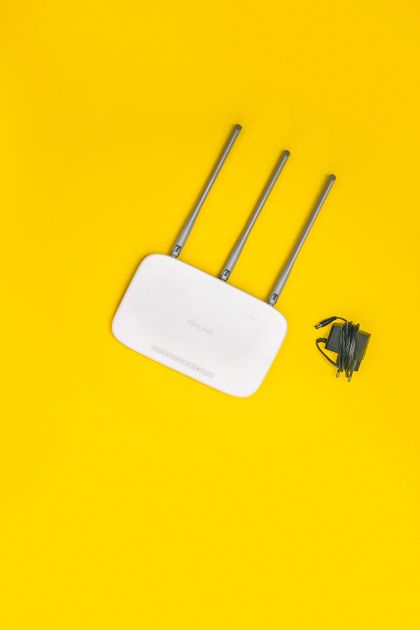
Photo via Pexels
Quick note: Supacells is an independent information site. We don’t provide cybersecurity services. This article is educational only.
A guest WiFi network is a separate WiFi network on your router for visitors and untrusted devices. It provides internet access without giving access to your main network’s devices and files. Setting one up takes 5–10 minutes and dramatically improves home network security.
Why Set Up Guest WiFi
| Reason | Benefit |
|---|---|
| Visitor access | Without sharing main password |
| IoT device isolation | Smart devices separated from computers/phones |
| Limit bandwidth | Optional throttling for guests |
| Easy password rotation | Doesn’t affect main network |
| Damage limitation | Compromised guest device can’t reach main devices |
| Children’s separate network | Easier parental controls |
Setting Up Guest WiFi
Step 1: Login to Router
| How | Details |
|---|---|
| Router IP | Usually 192.168.1.1, 192.168.0.1, or 192.168.86.1 |
| Mobile app | Many routers have apps (Eero, Nest, ASUS, TP-Link, etc.) |
| Web browser | Type IP into address bar |
| Default credentials | Check router label |
Step 2: Find Guest Network Settings
Common locations:
- “Wireless” → “Guest Network”
- “WiFi Settings” → “Guest”
- App’s “Settings” → “Guest WiFi”
- “Advanced” → “Guest Access”
Step 3: Configure Settings
| Setting | Recommended |
|---|---|
| Enable guest network | Yes |
| Network name (SSID) | E.g., “YourHome-Guest” |
| Security | WPA3 (or WPA2/WPA3 mixed) |
| Password | Strong, but easier than main |
| Allow access to local network | NO |
| Allow guest-to-guest | Optional (depends on use) |
| Bandwidth limit | Optional |
| Time limit | Optional |
| Internet only | Yes |
Step 4: Enable for Both Bands
If router has 2.4 GHz and 5 GHz/6 GHz, enable guest on both bands so all device types can connect.
Recommended Settings Detailed
Network Name
Make it clearly different:
- “YourHome-Guest”
- “[YourName]-Guests”
- Avoid “Network 5GE” type generics
Security
Use WPA3 if all expected guest devices support it. Otherwise WPA2/WPA3 mixed mode.
Password
Should be:
- Different from main network password
- Strong enough (12+ characters)
- Easy enough to share verbally
- Examples: “AppleSky2026!”, “PineappleRed42$“
Local Network Access
Critical: disable this. Guests should access internet only, not your printers, file shares, smart home devices, or other computers.
Optional Restrictions
| Restriction | When Useful |
|---|---|
| Bandwidth limit | Lots of guests, slow internet |
| Time limit | Restaurant / cafe / business |
| Schedule | Weekdays only, etc. |
| Captive portal | Force terms acceptance |
Using Guest Network for IoT
Smart home devices (smart bulbs, plugs, sensors) often have weak security. Putting them on guest network protects your main devices.
| Device Type | Guest Network OK? |
|---|---|
| Smart speakers (Echo, Google Home) | Yes |
| Smart plugs / bulbs | Yes (some need same network as phone) |
| Smart thermostats | Often yes |
| Smart cameras | Mixed — some need same network for setup |
| Smart TVs | Either |
| Streaming devices (Roku, Fire TV) | Either |
Test that smart home devices work on guest network before final setup.
QR Code for Easy Sharing
Many routers and password managers can generate QR codes:
- Print QR code
- Display in guest area
- Visitors scan to auto-connect
- Convenient + no spelling errors
When NOT to Use Guest Network
| Situation | Reason |
|---|---|
| Devices need to interact (phone + Chromecast) | Same network required |
| Sharing files between devices | Same network required |
| Printer sharing | Same network typically |
Some scenarios require devices on same network. Guest is for true outsiders/IoT.
Sharing Main Password vs Guest
| Approach | Trade-Off |
|---|---|
| Share main password | Guest sees your devices, security risk |
| Share guest password | Guest gets internet only, secure |
| Don’t share | Guest uses cellular |
Always use guest password for visitors.
Multi-Network Setup Strategy
Sophisticated home network setup:
| Network | Purpose | Devices |
|---|---|---|
| Main (WPA3) | Trusted personal devices | Phones, laptops, computers |
| IoT | Smart home | Bulbs, plugs, thermostats |
| Cameras | Security cameras only | Cameras |
| Guest | Visitors | Temporary use |
This requires router supporting multiple SSIDs (most modern do).
Mesh System Guest Networks
Mesh systems make guest networks easy:
| Mesh System | Guest Network Setup |
|---|---|
| Eero | Eero app → Settings → Guest network |
| Google Nest | Google Home app → Network → Guest |
| TP-Link Deco | Deco app → Settings → Guest network |
| Netgear Orbi | Orbi app → Guest network |
Setup typically takes 2–5 minutes through app.
Default Guest Networks
Some ISP-rented routers have guest networks enabled by default. Verify:
| Check | Action |
|---|---|
| Is guest network enabled? | Disable if not using |
| Is password strong? | Change if default |
| Does it allow local access? | Disable that |
| Is bandwidth shared? | Verify acceptable |
Helpful Resources
📖 Wi-Fi Alliance Security — WiFi security best practices.
📖 CISA Network Security — government cybersecurity guidance.
📖 Router manufacturer support — for product-specific setup.
Common Guest Network Mistakes
- Not enabling local access restriction — defeats the purpose
- Same password as main network — no security benefit
- Sharing guest password publicly — anyone in range can connect
- Forgetting to enable on both bands — devices can’t connect
- Not testing setup before guests arrive
- Confusing IoT setup needs — some devices need same network as phone
When to Change Guest Password
| Trigger | Action |
|---|---|
| After major event with many guests | Change |
| Suspect compromise | Change immediately |
| Periodically | Optional |
| Guest leaves and won’t return | Optional |
Guest passwords easier to rotate than main.
Bandwidth Limiting
Some routers allow guest network bandwidth caps:
- Useful for slow connections
- Prevents guests from saturating
- Common settings: 5 Mbps to 50% of total
- Test before relying
FAQ — Guest WiFi Networks
Q: Why use a guest network? A: Visitors get internet without accessing your devices/files. IoT devices are isolated from main network. Limits damage if compromised.
Q: Will my smart devices still work on guest network? A: Some yes, some no. Smart speakers and plugs often work. Cameras and devices needing local discovery may need main network.
Q: Should I share my guest password publicly? A: Generally no — only with people you trust to be in your home/business. Anyone within WiFi range could connect.
Q: Can guest devices see each other? A: Depends on router setting. Disable guest-to-guest for max security; enable if sharing files between guests intended.
Q: How often should I change guest password? A: After major events with many strangers, when suspecting compromise, or whenever convenient.
Related Reading on Supacells
- Best WiFi Routers of 2026
- WiFi Security: WPA2 vs WPA3
- How to Boost WiFi Signal at Home
- Smart Home Networking Basics
- Mesh WiFi vs Single Router
Bottom Line
Set up a guest WiFi network in 5–10 minutes. Use it for visitors and IoT devices. Disable local network access (the most important setting). Strong but shareable password. WPA3 security. Most modern routers and mesh systems make this easy through their app. The security benefit is significant for minimal effort.
Disclaimer: This article is for informational and educational purposes only. Supacells does not provide cybersecurity services or networking equipment.
By Supacells Editorial · Updated May 9, 2026
- guest wifi
- network setup